ScreenOCR
ScreenOCR extracts text from screen captures on macOS and Windows, with clipboard-image recognition on Windows. Recognition runs locally using Apple Vision on macOS and Windows.Media.Ocr on Windows.
Commands
| Command | macOS | Windows |
|---|---|---|
| Recognize Text | Select a screen region | Drag-select a region in a frozen-screen overlay |
| Recognize Text on Entire Screen | Recognize the current display | Recognize the virtual desktop across all monitors |
| Recognize Text in Clipboard Image | Not supported | Recognize a clipboard image or supported copied image file |
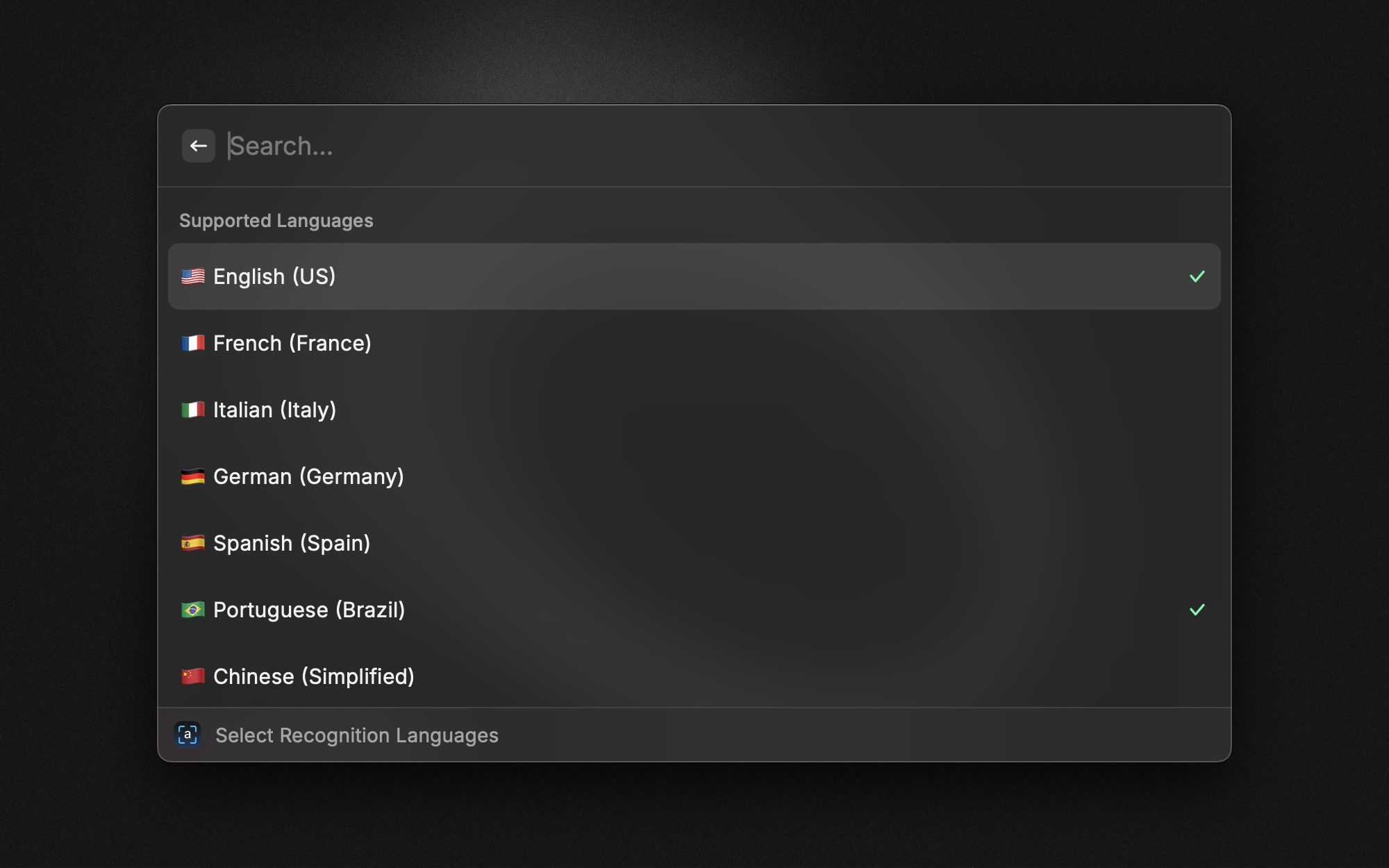
| Select Recognition Languages | Choose primary and additional Vision languages | Choose Auto or one installed Windows OCR language |
| Detect Barcode/QR Code | Detect codes in a selected screen region | Not supported; the command explains this limitation |
Assign hotkeys in Raycast Settings → Extensions → ScreenOCR. Cancel a Windows selection with Escape or right-click; cancellation leaves the clipboard unchanged.
Preferences
- After Recognition (Windows): copy text, paste into the active app, or copy and paste. The default is copy. macOS retains its existing copy behavior. Cross-extension callbacks receive text directly and skip ordinary output actions.
- Ignore line breaks: join recognized lines with spaces.
- Show toast messages: control command-result notifications.
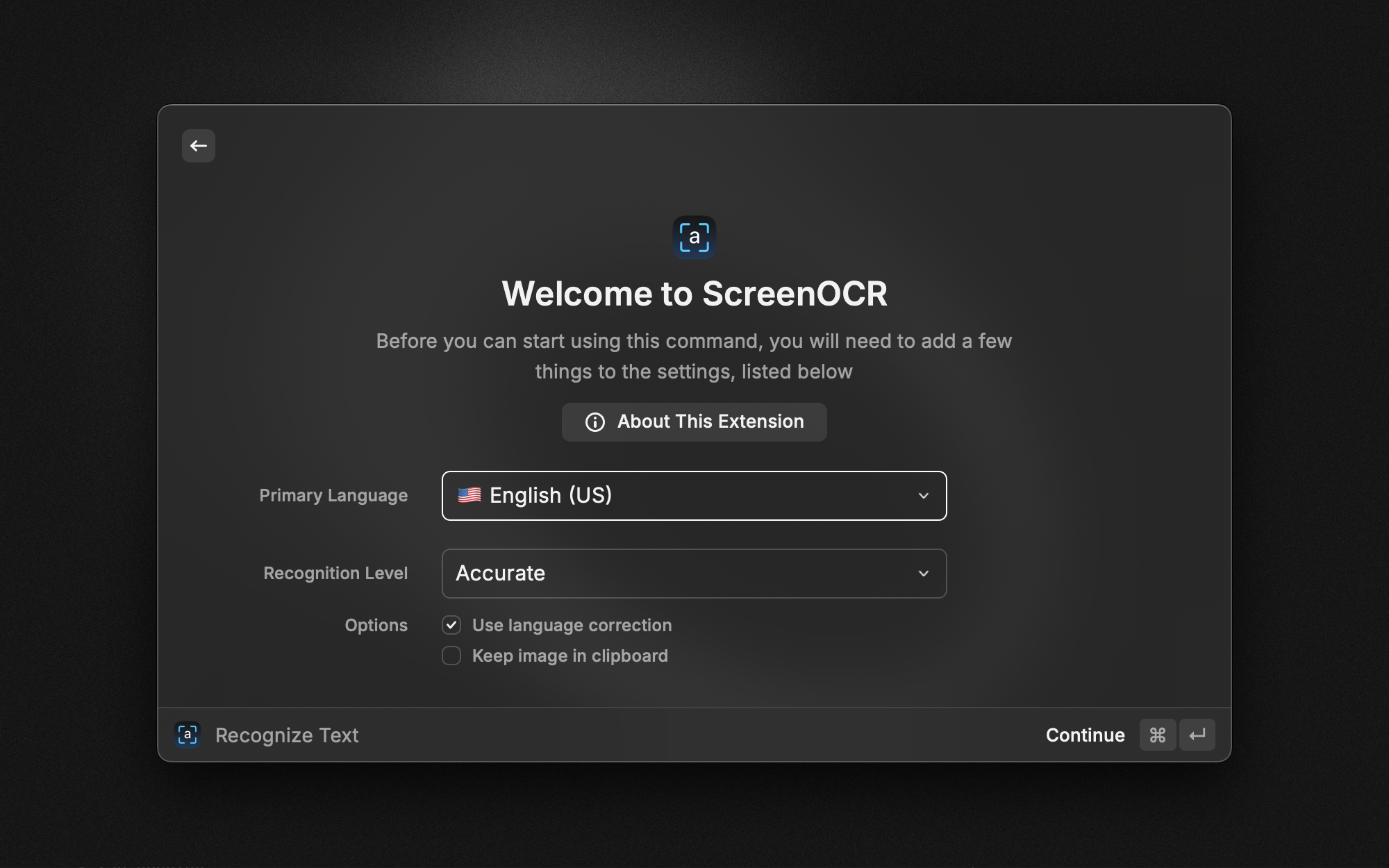
- macOS options: recognition level, language correction, primary/additional languages, custom words, shutter sound, and copying the captured image before recognition. Copying recognized text may replace the clipboard image. These options do not configure the Windows OCR engine.
macOS requirements
Requires macOS 15 or later and Screen Recording permission for screen capture. The existing macOS implementation and capture preferences are unchanged by this Windows contribution.
Windows requirements and languages
Requires Windows 10 or later, following Raycast's Windows requirements, with Windows PowerShell 5.1 and an installed OCR language pack. Each operation starts a temporary helper process that exits after completion; no separate background OCR app is required.
Auto selects an OCR engine from your Windows profile languages. It does not recognize every installed language simultaneously. Use Select Recognition Languages to see installed OCR languages and choose one explicitly. If that language's OCR pack is removed, recognition reports the missing pack instead of silently switching engines. Install OCR language features through Windows Settings → Time & Language → Language & Region.
Windows and macOS language selections are stored separately. Windows clipboard-file recognition supports PNG, JPEG, BMP, GIF and TIFF. Clipboard files are limited to 128 MiB, decoded image dimensions to 32,768 pixels per side and 100 million pixels total; larger inputs report an error. Copied WebP files are not supported by this helper. Copy the image itself from an application that can decode it instead. Screen images are processed in memory, and oversized images are scaled to the OCR engine's limits; this can reduce small-text detail on large desktops.
Troubleshooting
- No OCR language available: install an OCR language pack, then select it or use Auto. A display language alone does not establish that its OCR feature is available.
- No image in clipboard: copy an image or a supported image file. Corrupt or unsupported files produce a separate error.
- Text recognition failed: verify screen-capture permission on macOS or that Windows policy permits the helper. The extension does not change system execution policies.
- Wrong language: select the appropriate installed Windows OCR language or adjust the macOS recognition languages.
The extension sends no captures or recognized text to a cloud OCR service. Copy and paste use the system clipboard, whose history or sync behavior follows your system settings.
API
This extension follows Raycast Cross-Extension Conventions
See API.md to learn how to call ScreenOCR from your extension.
If you find ScreenOCR helpful, feel free to buy me a coffee